Softdisk Publishing · Strategy
BattleStar
BattleStar for DOS: place five ships, pick weapons and hunt the rival fleet. A 1992 Softdisk strategy game in English, with help and online play.
Strategy game by Softdisk Publishing (1992) for MS-DOS, in English. Playable in your browser or downloadable.
— no rating yet
THE CLABA ARCHIVE
Inside the game.
Its history, its ideas and the reasons to come back.
BattleStar is a fleet search-and-combat game for DOS, published by Softdisk Publishing in 1992. Each commander places five ships on a grid and fires at the rival's map to discover where they are hiding. The computer returns fire after your turn. The first to destroy the opposing fleet wins.
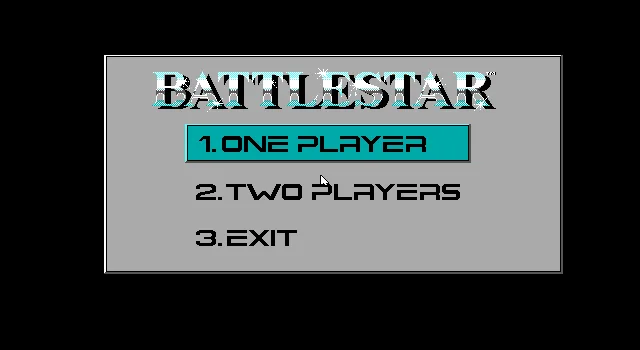
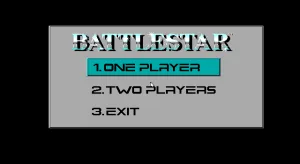
The title screen carries the On Disk Monthly heading and credits the original idea to Dan Harrison, the programming to Nolan Martin and the art direction to the Softdisk team. The copy is in English. The menu offers One Player, Two Players and Exit; to start against the computer, select One Player and enter your name.
Placing the five ships
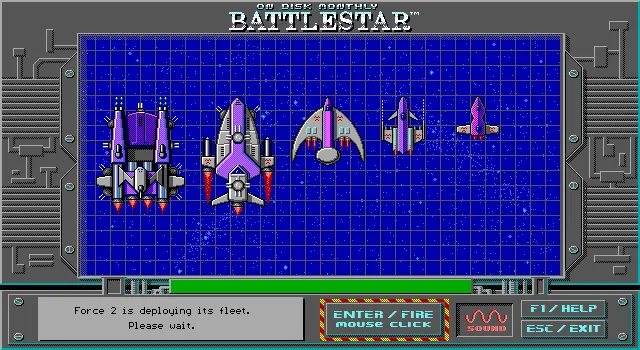
The first phase lets you deploy BattleStar, Destroyer, Sentry, Fighter and Scout. Their silhouettes come in different sizes. The bottom panel shows how many are left and names the one you are placing. You can move it with the keyboard arrow keys or, according to the help, with the mouse.
Enter fixes the proposed position. Before moving on to the next ship, Are You Sure? (Y/N) appears: Y accepts and N lets you correct it. Repeat the process until the fleet is complete. The computer then prepares its own, and the search begins on a grid where its ships remain hidden.
Choosing a weapon and a target
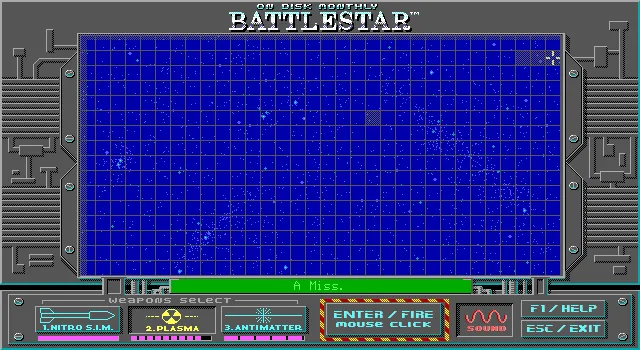
The tracker marks the target square. The arrow keys move it across the map; Enter fires at the chosen position. The three icons at the bottom correspond to the weapons: 1 selects Nitro, 2 the plasma ray and 3 antimatter. The help uses the names Nitro Warhead, PlasmaRay and Anti-matter.
After the shot, the game shows the result and moves on to the enemy's reply. A Miss indicates a miss. The square stays marked, so you can check the places you have already tried before choosing the next one. During the computer's action you see your fleet again; wait for your commander's target prompt to return before continuing.
It pays to search in a recognizable pattern and to review the marks from each turn. A ship occupies several squares, so finding it and destroying it are not the same action. The game combines the initial placement of the ships, the choice of weapon and the search for their positions.
In-game help
F1 opens instructions adapted to the current phase. During deployment, it explains how to move and confirm a ship. In combat, it offers five pages on the objective, the turns, the tracker, the weapons and the controls. PgDn and PgUp change pages; Esc closes the help. S turns the game's sound on or off.
The gallery shows the original menu, a deployed fleet and the result of a plasma shot. The background image comes from the DOS menu itself. The download keeps the three original files, including BATTLE.TXT; detailed instructions can be read with F1 inside the program.
EVERY PIXEL COUNTS
The game in pictures.
Explore the screenshots and open every detail at full size.
GET READY FOR YOUR NEXT GAME
Choose your download.
Format, compatibility and server. All in view.
Clicking opens the CLABA loading area and, in a few seconds, your download. If a link fails, let us know via Contact or in the forum.
Your game starts here
Play in your browser.
Pick, press and go back to the classics without leaving the game page.
RetrogamingRight in your browserNo installation
MS-DOSIn your browser
BattleStar
Your next game starts here.
- 183 KB · downloads on click
- Save the game's files
- Keyboard, controller or touch
Controls
Click the game to use the keyboardOn mobile, play with the on-screen controller- ↑←↓→
- move
- Enter
- place/fire
- F1
- help
- Esc
- exit
Y/N: confirm/correct. 1/2/3: weapons. PgDn/PgUp: pages.
- Full screen
Use the button on the bar. Esc returns to the game page; “Exit” closes the game.
- Saves
Save keeps the files the game creates, not the exact moment. Save inside the game, then press Save.
- Mobile and tablet
Press Controls during the game to show buttons and keyboard. Gamepad support depends on the browser.
Saves live in this browser and device. Clearing the site data deletes them too.
THE SECRET SIDE OF THE GAME
Tips, tricks and secrets.
A hint at the right time. A code that changes everything.
Tip: check each position before accepting it
Enter proposes the position and opens the Y/N question. If the ship ended up somewhere you didn't want, answer N and correct it with the arrow keys. Check its silhouette and the nearby squares before pressing Y.
Tip: keep a search pattern
The marks from earlier shots help you avoid repeats. Sweep areas you can recognize and look at the result before choosing another square. A miss also helps narrow down the area still left to explore.
Tip: wait for your commander to return
After you fire, the game presents the result and the computer's action. Watch the bottom strip and wait until it asks for a target again. That way your next keypress will register during your search turn.
Tip: check the help for the current phase
F1 shows different information during placement and combat. The five combat pages also include the weapon keys. Esc closes the help; outside of it, it ends the game.
No matches. Try another effect or code.
THE NEXT STEP, CLEARER
Guides to move forward.
From the first installation to that mission that won't give in.
Starting a game against the computer
Continue from the title screen with a keypress. In the menu, leave One Player selected and press Enter. Type your commander's name and confirm with Enter. Wait for the first ship to appear on the map; the Please wait messages are part of loading.
Deploying the fleet with the keyboard
The arrow keys move the ship that is waiting. Enter fixes its position and shows Are You Sure? (Y/N). Press Y to place it or N to move it again. The counter goes from five ships pending to four, three, two and one. Repeat the process for BattleStar, Destroyer, Sentry, Fighter and Scout. Then wait for the opponent's deployment.
Selecting weapons and firing
In combat, 1 picks Nitro, 2 Plasma and 3 Anti-matter. The selected icon is highlighted in the bottom area. Move the tracker with the arrow keys and press Enter to fire. Let the result and the computer's reply finish before choosing the next target. Testing this copy included Nitro and plasma shots that showed the message A Miss, followed by the return to the player's turn.
Reading the instructions and adjusting the sound
Press F1 once the phase is ready. The deployment help explains how to confirm positions. In combat there are five pages: use PgDn and PgUp to go through them and Esc to close them. S toggles the game's own sound. The ClaBa Player bar can also mute the player.
Using the player and starting over
Click inside the game to give it focus and use the keyboard to type your name, place the fleet and aim. The controls cover the directions, Enter, Y and the three weapons. The bar lets you pause, enlarge the screen, restart and end the session. Restarting repeats the title screen and the fleet setup.
Original download and sources for this edition
Unzip the ZIP and keep battle.exe, battle.img and battle.txt together. Run battle.exe in a compatible DOS environment. The short BATTLE.TXT text explains the objective and points to F1 for the full instructions. See DOSBox from scratch (in Spanish) to set up the emulator.
The original title screen credits Dan Harrison and Nolan Martin and shows the 1992 Softdisk Publishing copyright. The catalog of On Disk Monthly issue 65 preserved by PCjs lists BATTLE.EXE and BATTLE.IMG, with the same sizes as the ones in this copy. The instructions on this page come from the help included in the game.
Something wrong?
Give us a hint.
A broken link, a detail to correct or a game that won't start. Your report helps keep this game page up to date.
Get in touchReport an issue with this game Discuss it in the forumCLABA ARCADE ROOM
This one and 250 more
play here.
When you finish your game, the room has other machines switched on.
Enter the roomTHE CLABA APP1.0 RC 1
Take the archive
with you.
Game pages, online play and your shelf on Android. Free, no sign-up.
ARCHIVE SECRETS
Did you know?
- The title screen credits the idea to Dan Harrison and the programming to Nolan Martin.
- The game appears in the catalog of On Disk Monthly issue 65, with BATTLE.EXE and BATTLE.IMG.
- The fleet has five types of ship: BattleStar, Destroyer, Sentry, Fighter and Scout.
- The original menu offers a game against the computer and a two-player option on the same machine.