Clockwork Software · Strategy
Begin 2.0 A Tactical Starship Simulation
Tactical simulation from Clockwork Software for DOS, version 2.0 from 1991. Set up fleets and type orders for maneuvering, loading and firing.
Strategy game by Clockwork Software (1991) for MS-DOS, in English. Playable in your browser or downloadable.
— no rating yet
THE CLABA ARCHIVE
Inside the game.
Its history, its ideas and the reasons to come back.
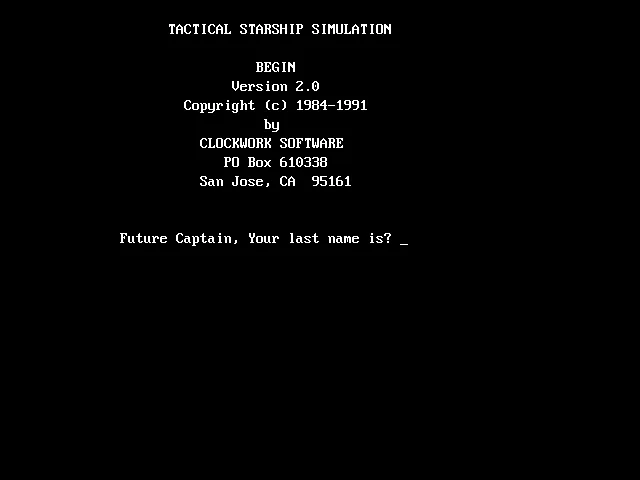
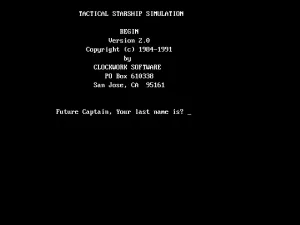
Begin 2.0, A Tactical Starship Simulation is a tactical simulation from Clockwork Software for DOS. Its title screen identifies version 2.0 and a copyright of 1984 to 1991. The player types orders to set up the fleets, steer the ship, and use the weapon systems. The text and dialogs in this copy are in English.
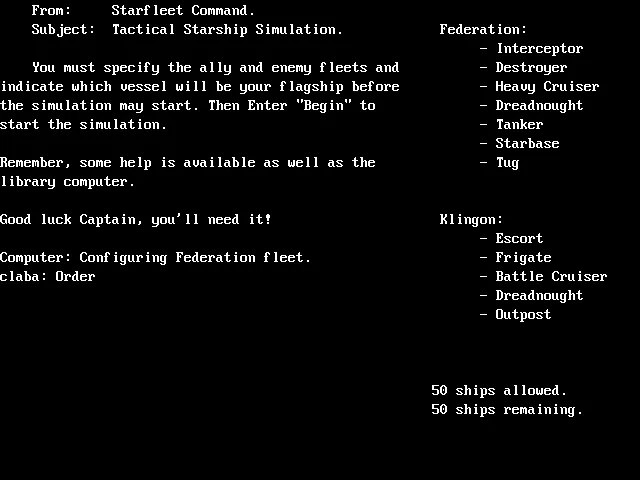
Setup begins with the captain's name and the choice of two nations. You can pick Federation, Klingon, Romulans, or Orion pirates. Then you define the ships on each side and indicate which one will be your flagship. This version's setup screen shows a limit of fifty ships.
Setting up the two fleets
The game that was tested pits a Federation Heavy Cruiser against a Klingon Battle Cruiser. The setup orders let you specify the side, the number, and the class. Flagship identifies the ship you are going to command. Begin starts the simulation once both fleets are ready.
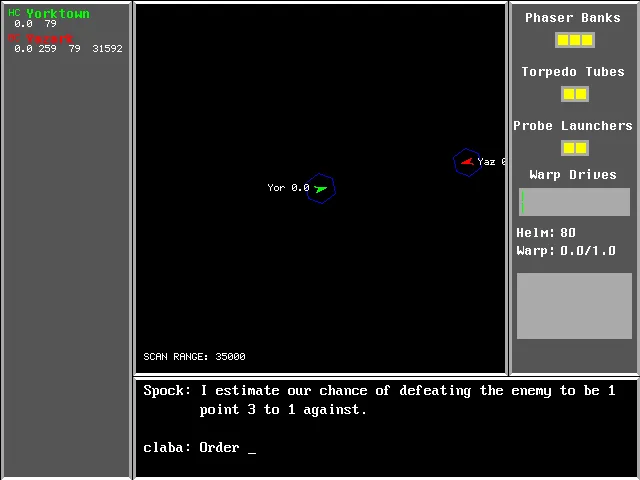
Ship names can change between games. In one test, Republic and Votek appeared. In another, Yorktown and Yazark appeared. The panel on the left identifies each ship, so you should check that name when you lock onto a target. The gallery shows the second of these games.
The tactical screen and the orders
The map takes up the center of the screen. The ship symbols and their shields let you track the relative position of the two sides. On the left is the list of ships. On the right are Phaser Banks, Torpedo Tubes, Probe Launchers, and Warp Drives, along with your own ship's heading and speed.
The bottom strip holds the crew's messages and the space for typing. Enter an order and confirm it with Enter. The program may ask for additional data before executing it. It is important to read the last question, because your answer belongs to that dialog. When Order appears again, you can type another complete order.
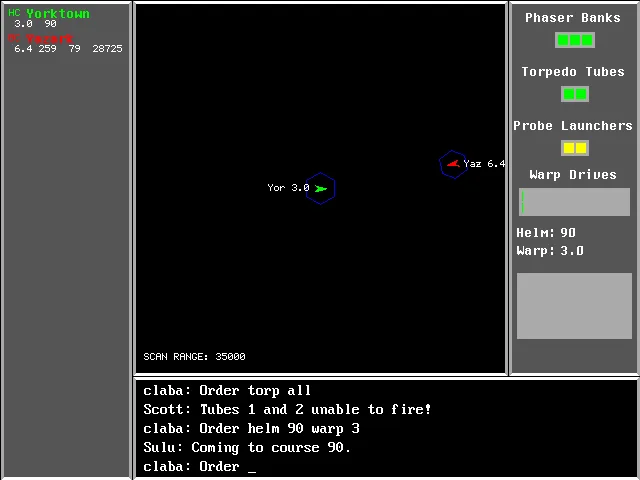
In testing, helm 90 warp 3 changed the requested heading to 90 degrees and the speed to warp 3. Sulu confirmed the order and the panel showed the new values. The distance to the adversary changed as the simulation cycles advanced.
Loading and firing torpedoes
The weapons sequence begins with loading. load all tubes asks for the torpedo class. On this ship, mk7 was verified. The next question asks for the proximity fuse and shows the permitted range. Entering 425 produced the confirmation that both tubes were loaded.
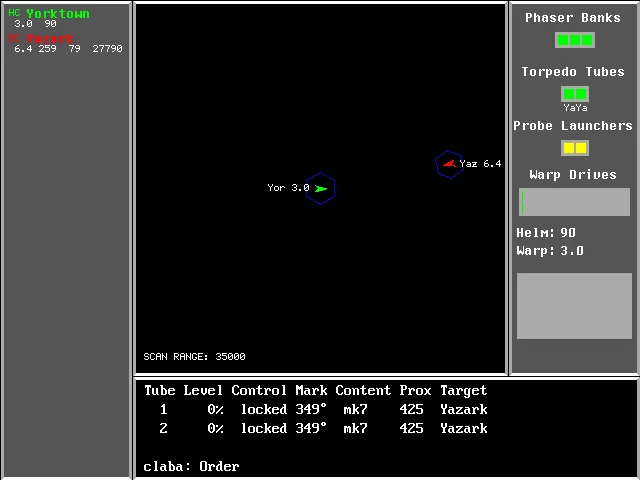
Locking onto a target also involves a dialog. After an order such as lock all tubes on yazark, the program asks about dispersion. In testing, 0 was entered. The tubes query showed both tubes containing mk7, proximity 425, and the name Yazark as the target.
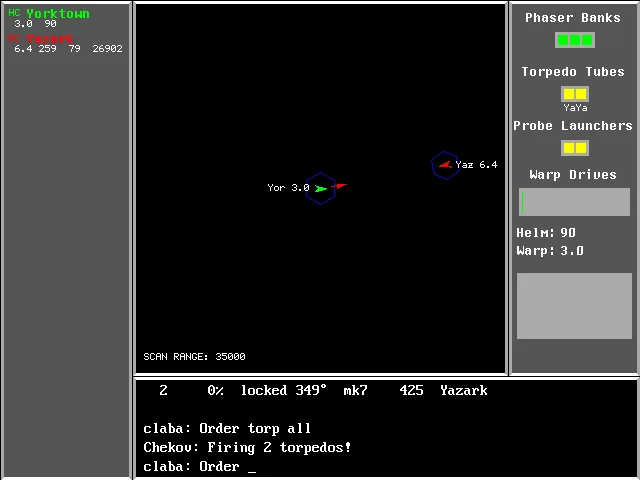
With the tubes ready, torp all produced the message Firing 2 torpedos! and the trajectories appeared on the map. The gallery screenshots show the state of the tubes before firing and the firing itself. The map and the messages let you follow what happens after each order.
The preserved copy
The ZIP contains the executable begin2.exe, a manual for version 1.65, and a file with what's new in 2.0. The instructions on this page were tested on the 2.0 executable. Among its loading dialogs are the torpedo class and the proximity fuse. Locking onto a target also asks for dispersion.
The player uses a copy prepared with DOSBox and keeps the three original files. The title screen is used as the identifying image and as the page background. The gallery comes from running this same copy and shows setup, maneuvering, and torpedo firing.
EVERY PIXEL COUNTS
The game in pictures.
Explore the screenshots and open every detail at full size.
GET READY FOR YOUR NEXT GAME
Choose your download.
Format, compatibility and server. All in view.
Clicking opens the CLABA loading area and, in a few seconds, your download. If a link fails, let us know via Contact or in the forum.
Your game starts here
Play in your browser.
Pick, press and go back to the classics without leaving the game page.
RetrogamingRight in your browserNo installation
MS-DOSIn your browser
Begin 2.0 A Tactical Starship Simulation
Your next game starts here.
- 125 KB · downloads on click
- Save the game's files
- Keyboard, controller or touch
Controls
Click the game to use the keyboardOn mobile, play with the on-screen controllerSpace continues. Type orders and confirm with Enter. help shows help. helm changes heading and speed. load loads the tubes and torp fires.
- Full screen
Use the button on the bar. Esc returns to the game page; “Exit” closes the game.
- Saves
Save keeps the files the game creates, not the exact moment. Save inside the game, then press Save.
- Mobile and tablet
Press Controls during the game to show buttons and keyboard. Gamepad support depends on the browser.
Saves live in this browser and device. Clearing the site data deletes them too.
THE SECRET SIDE OF THE GAME
Tips, tricks and secrets.
A hint at the right time. A code that changes everything.
Tip for completing each dialog
Read the last question before typing. Torpedo class expects a class such as mk7. Proximity fuse expects a number within the range shown. Dispersion asks for an angle. When Order appears again, you can enter the next complete order.
Tip for checking the tubes
The tubes order shows the contents and target of each tube. In testing, two rows appear with mk7, proximity 425, and target Yazark. Check that status before ordering the shot.
Tip for using the adversary's name
Look at the ship list in the left panel. Replace yazark in the locking example with the name that appears in your game. The two games tested used different names.
Tip for following a maneuver
After an order such as helm 90 warp 3, check Sulu's message and the Helm and Warp indicators. The panel shows the heading and the speed. The side list also lets you track the distance to the adversary.
No matches. Try another effect or code.
THE NEXT STEP, CLEARER
Guides to move forward.
From the first installation to that mission that won't give in.
Setting up a two-ship game
Press Space after the initial notice. Type a captain's name and confirm with Enter. To reproduce the setup that was tested, enter fed as your own nation and kli as the rival nation, confirming each answer.
In fleet setup, type ally 1 heavy cruiser flagship and confirm. Then type enemy 1 battle cruiser. The begin order opens the tactical screen. Your ship and the rival ship will appear on the map and in the list on the left.
Maneuvering, loading, and the fuse
Type helm 90 warp 3 at Order and confirm with Enter. Check the heading and the speed. To load, type load all tubes. When it asks for Torpedo class, answer mk7. When it asks for Proximity fuse, answer 425.
Wait for the dialog to finish and for Order to return before entering another order. The program confirms that it is loading two tubes. Later cycles let the loading finish. The tubes order shows their status.
Locking a target and firing
Check the name of the enemy ship. In the gallery example it is called Yazark, so lock all tubes on yazark is used. Replace that name with the one shown in your game. To the Dispersion question, answer 0 and confirm.
After locking the target, repeat helm 90 warp 3 and check tubes. If Content still shows empty, give the maneuver order again and check the tubes again. Repeat until both rows indicate mk7 and the correct target. When they are ready, torp all orders both tubes to fire. The test of this copy shows the message Firing 2 torpedos! and the launch trails on the map.
Files, help, and provenance
The download keeps begin2.exe, begin2.txt, and whatsnew.txt. The browser adds a DOSBox configuration and its own launcher. The DOSBox from Scratch tutorial (in Spanish) explains how to mount a folder and run a DOS program. The help order shows the help available in the current context.
Tom Nelson maintains The Starfleet Project, where he explains the later port of Begin 2.0 to Windows. This page corresponds to the DOS 2.0 version. The controls described come from running that copy, and the images are screenshots of the program.
Something wrong?
Give us a hint.
A broken link, a detail to correct or a game that won't start. Your report helps keep this game page up to date.
Get in touchReport an issue with this game Discuss it in the forumCLABA ARCADE ROOM
This one and 250 more
play here.
When you finish your game, the room has other machines switched on.
Enter the roomTHE CLABA APP1.0 RC 1
Take the archive
with you.
Game pages, online play and your shelf on Android. Free, no sign-up.
ARCHIVE SECRETS
Did you know?
- The executable presents itself as Begin version 2.0, with a Clockwork Software copyright of 1984 to 1991.
- The copy includes an earlier manual, identified as version 1.65, and a file with what's new in 2.0.
- The setup panel in this version allows you to deploy up to fifty ships.
- The messages for the orders tested are signed by Sulu and Chekov.