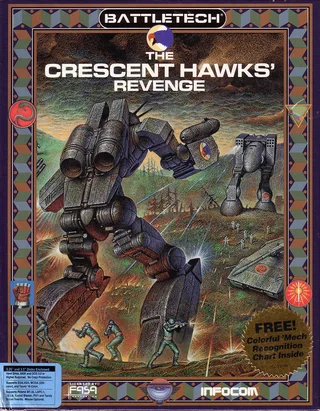
Westwood Studios · RPG
BattleTech: The Crescent Hawk’s Inception
BattleTech: The Crescent Hawk’s Inception for DOS. Follow Jason Youngblood across Pacifica in this Westwood and Infocom RPG, playable online.
Role-playing game by Westwood Studios (1988) for MS-DOS (in English), Atari ST and Amiga. Playable in your browser (MS-DOS, Atari ST and Amiga) or downloadable.
Choose your version 3 platforms
— no rating yet
THE CLABA ARCHIVE
Inside the game.
Its history, its ideas and the reasons to come back.
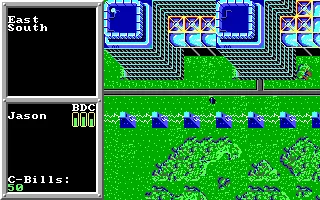
BattleTech: The Crescent Hawk’s Inception brings the combat robots of BattleTech to a role-playing adventure for DOS. Westwood Associates developed the game and Infocom published it in 1988. The story follows Jason Youngblood on Pacifica, within the Lyran Commonwealth, in the year 3028. Before you command a BattleMech, you will have to explore its facilities and get to know the protagonist.
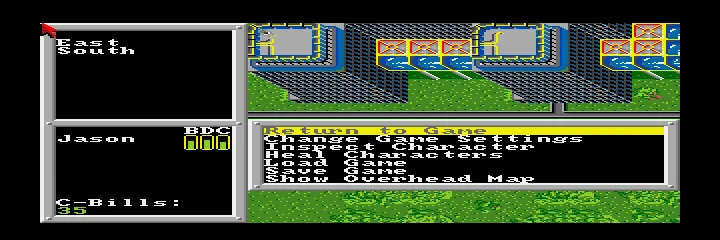
The screen is divided among the scenery, the messages and the character information. Your commands are written in a log: if you move east, East appears; when you head south, South. This separation lets you observe the terrain and read what is happening without losing sight of Jason. The text in this copy is in English.
A new game, step by step
The DOS startup asks about the graphics mode and the disk drives. For this edition, press 3 at the graphics selection, which corresponds to 256K EGA/VGA. At the next question, press 3 again to choose hard disk C:. The message that follows explains that the files must be together in the current directory. Press Space to continue to the title illustration.
From that illustration, a keypress takes you to the opening questions. If you want to start playing right away, answer N to Is this your first time playing BattleTech? and then N to Do you want to load an old game? The first question offers a guided introduction. Choosing No and declining to load lets you recognize a new game by the starting scene and the empty movement log.
Jason before the first BattleMech
The arrow keys move the character around the map. Space opens the main menu, where you can return to the game, change settings, inspect the character, heal him, load, save or consult the overview map. The arrow keys move through the options and Enter confirms the selected one. The menus also show small letters that identify their entries.
Inspect Character summarizes Jason’s equipment and readiness. At the start he carries a Cudgel, wears no armor and is listed as healthy. His skills appear as Unskilled. The screen also lets you check whether he has a medkit, field surgery equipment or a mapping device. It is a good first thing to consult before looking for trouble.
The manual lets you adjust the speed of movement and combat, as well as the sound. The adventure combines movement, conversations, equipment and fights; its interface devotes space to written information and to the characters’ decisions. It pays to read each response before giving the next command.
Entering the Citadel
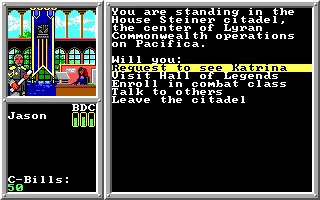
When you approach an entrance, the game may ask whether you want to enter. At the Citadel, Will you enter the Citadel? waits for a Yes or No answer. Press Y to accept and let the loading finish. The interior is presented as the operations center of the Lyran Commonwealth on Pacifica.
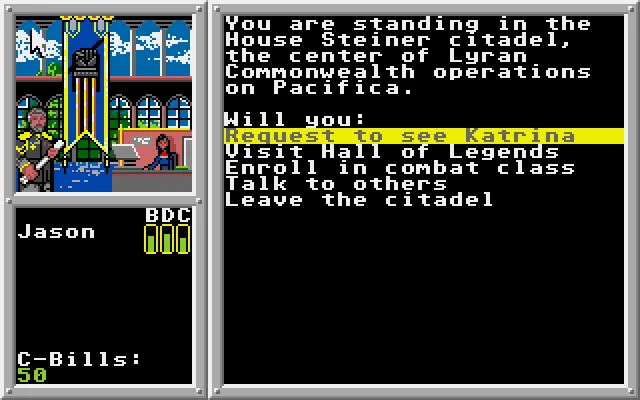
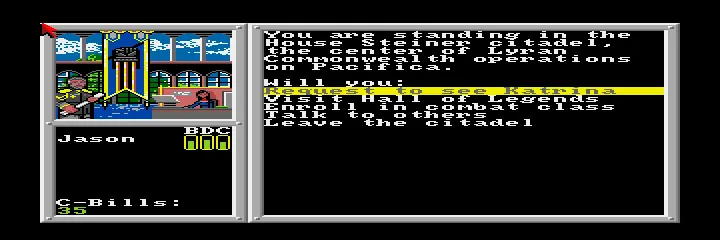
Several possibilities appear there: request an audience with Katrina, visit the Hall of Legends, sign up for a combat class, talk to the people present or leave. Each one represents a concrete decision within a place you have already reached on foot. Talking may bring back an unpromising response: nobody seems interested in chatting with you. Even that refusal helps you understand how the scenes and their options work.
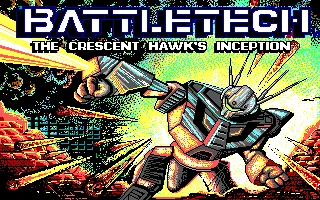
The gallery includes the original presentation, Jason’s first steps and the Citadel menu. The header uses the game’s own title screen. The download keeps the files from the copy together, ready to run in a compatible DOS environment.
ONE GAME, 3 PLATFORMS
Versions.
3 platforms3 playable online
Pick a platform: the screenshots, downloads and online game on this page switch with it.
- Year
- 1988
- Developer
- Westwood Studios
- Downloads
- 1
- Screenshots
- 3
The MS-DOS version is the one this page covers: the information, review and main screenshots are from this platform.

- Downloads
- 1
- Screenshots
- 2
BattleTech: The Crescent Hawk’s Inception for Atari ST follows Jason Youngblood across Pacifica. The intro credits Infocom and Westwood Associates. The adventure combines exploring its facilities, conversations, character preparation and the combat of the BattleTech universe. This copy is in English.
Booting the Atari ST disk
Wait for the disk to finish loading. The first question is Do you wish to use two drives?: answer N to use one drive. Then the Infocom and Westwood Associates intro appears. Press Space to continue to the opening questions.
If you want to start a new game, answer N to Is this your first time playing BattleTech? and N to Do you want to load an old game? Wait a few seconds for Jason to appear on the scene. The direction log starts empty; its first entries will be the moves you make with the keyboard.
Walking, inspecting and entering
The arrow keys move the character across the map and write the directions into the log. Space opens Main Menu. Go through its options with Up and Down and confirm with Enter. Inspect Character lets you check Jason's weapon, armor, status and skills. At the start he carries a Cudgel, has no armor and his skills are listed as Unskilled.
When you approach a building, read the entry prompt. Will you enter the Citadel? lets you accept with Y or decline with N. Wait for the interior to load. The Citadel menu offers requesting an audience with Katrina, visiting the Hall of Legends, enrolling in a combat class, talking or leaving. The arrow keys and Enter also work for choosing among those possibilities.
The conversation option may tell you that nobody is interested in talking to you. Read the response before continuing: the text windows are part of the journey and of Jason's decisions.
The player and the download
ClaBa Player lets you pause, mute, enlarge the screen, take a screenshot and restart. Restart reloads the disk from the beginning. This edition does not offer persistent save states in the browser.
The download keeps the original ZIP and its ST disk. To open it outside the site you need a compatible Atari ST emulator and your own TOS. The box identifies the Atari ST platform; the screenshots of the intro and the Citadel come from a game run on that version. The video on the game page shows a walk through the opening scene.
- Downloads
- 2
- Screenshots
- 3
BattleTech: The Crescent Hawk’s Inception for Amiga puts Jason Youngblood at the center of a role-playing adventure set on Pacifica. Infocom and Westwood Associates appear in the presentation of this copy, identified as version 2.3. The scenes, the conversations, and the character sheet accompany the journey before the BattleMech battles.
Starting a new game
Wait for the AmigaDOS startup to finish and the presentation artwork to appear. Press N to continue to the initial questions. Answer N to Is this your first time playing BattleTech? and N to Do you want to load an old game? Let the scenario finish loading before moving Jason.
The log starts out empty. The arrow keys let you walk and add the directions you have traveled to the log. East means east and South means south. Space opens Main Menu; the Up and Down arrow keys move through its options and Enter confirms. You can return to the game, change the settings, inspect the character, heal him, load, save, or check the general map.
Equipment and facilities on Pacifica
Inspect Character shows Jason’s status, skills, and equipment. At the start he carries a Cudgel and has no armor. His condition is listed as healthy and his skills appear as Unskilled. The sheet also reports on the medical kit, the map device, and the field surgery kit. Enter closes the screen.
Building entrances can open Yes/No questions. At Will you enter the Citadel?, press Y to go in or N to stay outside. Wait for the interior menu: there you can request an audience with Katrina, visit the Hall of Legends, sign up for a combat class, talk to the people present, or leave. Move through those options with the arrow keys and confirm with Enter.
A conversation may reply that nobody is interested in talking to you. Read the message before continuing. The text scenes are part of the journey and present the activities available in each place.
Playing and downloading the Amiga edition
Click inside the game to give it keyboard focus. The ClaBa Player bar lets you pause, mute, enlarge the screen, take a screenshot, restart, and close. Restarting returns to the startup and the initial questions.
The original download keeps the ZIP with the IPF disk. You can also download an ADF copy, compatible with more Amiga emulators. Both come from the same disk in the collection. To use them outside the site you need a compatible emulator and your own Kickstart; the IPF format requires specific support in the emulator.
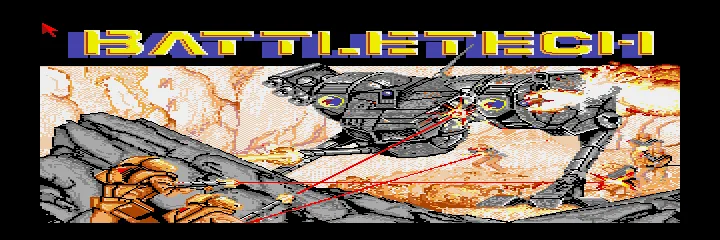
The featured image is the original Amiga title screen. The gallery shows that presentation, the menu after Jason’s first steps, and the entrance to the Citadel. All the screenshots come from this version of the game.
EVERY PIXEL COUNTS
The game in pictures.
Explore the screenshots and open every detail at full size.
GET READY FOR YOUR NEXT GAME
Choose your download.
Format, compatibility and server. All in view.
Version
SELECTED VERSIONMS-DOS1 file · also playable online
SELECTED VERSIONAtari ST1 file · also playable online
SELECTED VERSIONAmiga2 files · also playable online
Download the original Amiga IPF
COMPATIBILITYRequires an emulator ✓ At no cost✓ No sign-up Download BoxSharer server · New tab BoxSharer02 Amiga · OriginalDownload the Amiga ADF copy
COMPATIBILITYRequires an emulator ✓ At no cost✓ No sign-up Download BoxSharer server · New tabClicking opens the CLABA loading area and, in a few seconds, your download. If a link fails, let us know via Contact or in the forum.
Your game starts here
Play in your browser.
There are 3 versions ready to play. Pick one and click.
Version
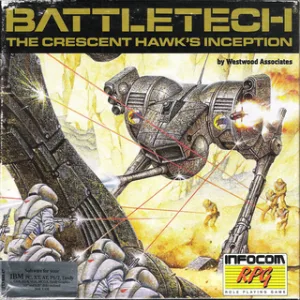
MS-DOSIn your browser
BattleTech: The Crescent Hawk’s Inception
MS-DOS version. Your next game starts here.
- 318 KB · downloads on click
- Save the game's files
- Keyboard, controller or touch
Controls
Click the game to use the keyboardOn mobile, play with the on-screen controller- ↑←↓→
- move/choose
- Space
- menu
- Enter
- confirm
Start: 3, 3, Space. New game: N for first time and N for load. Y/N: answer.
- Full screen
Use the button on the bar. Esc returns to the game page; “Exit” closes the game.
- Saves
Save keeps the files the game creates, not the exact moment. Save inside the game, then press Save.
- Mobile and tablet
Press Controls during the game to show buttons and keyboard. Gamepad support depends on the browser.
Saves live in this browser and device. Clearing the site data deletes them too.
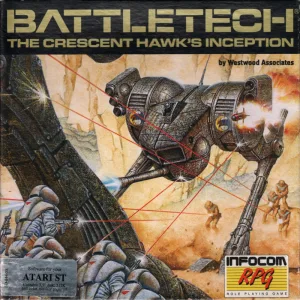
Atari STIn your browser
BattleTech: The Crescent Hawk’s Inception
Atari ST version. Your next game starts here.
- 720 KB · downloads on click
- Partida durante la sesión
- Keyboard and mouse
Controls
Click the game to use the keyboardOn mobile, play with the on-screen controller- N
- one drive
- Space
- continue/menu
- ↑←↓→
- move/choose
- Enter
- confirm
N to first time and N to load: new game. Y/N: answer.
- Full screen
Use the button on the bar. Esc returns to the game page; “Exit” closes the game.
- Saves
El reinicio vuelve a cargar el disco original. Los archivos que crees durante la sesión se conservan mientras mantengas abierta la partida.
- Mobile and tablet
Press Controls during the game to show buttons and keyboard. Gamepad support depends on the browser.
Saves live in this browser and device. Clearing the site data deletes them too.
AmigaIn your browser
BattleTech: The Crescent Hawk’s Inception
Amiga version. Your next game starts here.
- 411 KB · downloads on click
- Save states in this browser
- Controller, keyboard or touch
Controls
Click the game to use the keyboardOn mobile, play with the on-screen controller- N
- continue
- ↑←↓→
- move/choose
- Space
- menu
- Enter
- confirm
Wait for the title. N for first time and N for load: new game. Y/N: answer.
- Full screen
Use the button on the bar. Esc returns to the game page; “Exit” closes the game.
- Saves
Save State, in the game's menu, keeps the exact moment. Load brings it back when you return.
- Mobile and tablet
Press Controls during the game to show buttons and keyboard. Gamepad support depends on the browser.
Saves live in this browser and device. Clearing the site data deletes them too.
HIT PLAY
The game in motion.
Trailers and videos to see it in action.
-
Atari ST · BattleTech for Atari ST: first steps in Pacifica
Video of the Atari ST edition. Approximate length: 48 seconds.
THE SECRET SIDE OF THE GAME
Tips, tricks and secrets.
A hint at the right time. A code that changes everything.
Tip: tell the intro from a new game
Answer N to the question about whether this is your first game and N to loading a previous game. Check that the log starts out empty. That way you will be able to recognize the directions you add yourself as you walk with Jason.
Tip: check on Jason before heading out
Open the menu with Space and choose Inspect Character. Review his condition, skills and available equipment. The starting character carries a Cudgel and has no armor; that information helps you gauge any later encounter.
Tip: wait for each place to respond
An entrance can open a Yes/No question and need a few seconds to load the interior. Confirm with Y and wait for the building’s menu. Avoid chaining commands while the previous question is still on screen.
Tip: read the Citadel options
The Citadel lets you request an audience, visit the Hall of Legends, train or try to strike up a conversation. Move through the list with the arrow keys and confirm with Enter. A negative response is also part of the scene; continue once you have finished reading it.
No matches. Try another effect or code.
THE NEXT STEP, CLEARER
Guides to move forward.
From the first installation to that mission that won't give in.
Choosing graphics and starting without loading a game
In DOS, press 3 for 256K EGA/VGA and 3 for Hard disk C:. Continue with Space after the notice about the directory. From the title illustration, press a key to see Is this your first time playing BattleTech? Answer N. When it asks Do you want to load an old game?, answer N again. Wait until the map appears with Jason and the empty log.
Moving around and using the main menu
Click inside the game to give it focus. The arrow keys move Jason; the log writes out the directions of his steps. Space opens the main menu. Use the Up and Down arrows to move through it and Enter to confirm. Return to Game takes you back to the scene. Change Game Settings gathers the game’s settings.
Inspecting the character and his equipment
Open the menu with Space. From Return to Game, move down two positions to Inspect Character and press Enter. The character sheet shows the weapon, armor, condition, skills and several items. At the start you can read Cudgel, Armor: None and Unskilled for the skills. Enter closes the screen and lets you carry on across the map.
Confirming entry to a building
Walk up to a door and read the message that appears. Will you enter the Citadel? asks for confirmation: Y accepts and N declines. After loading, the Citadel’s options are navigated with the arrow keys and chosen with Enter. Leave lets you exit the building. Talking to the people present may tell you that nobody wants to talk to you.
Using ClaBa Player and keeping a save game
The ClaBa Player bar lets you pause, mute, enlarge the screen, restart and close the game. Restarting returns you to the DOS startup and its configuration questions. The game’s original menu includes Load Game and Save Game. If you want to keep a campaign using the download, set up your own working folder and use the game’s saves in your local emulator.
Original files and documentation
Unzip the complete download and keep btech.exe and its data files together. Start btech.exe in DOSBox or another compatible DOS environment. The tutorial DOSBox from Scratch (in Spanish) explains how to prepare a games folder.
The original Infocom manual presents the story and describes the menu system. The original Weapon and ’Mech Recognition Guide accompanies its vehicles and weaponry with illustrations. Consult it when you need to identify models. The startup, movement, inspection and Citadel entry instructions on this page have been checked on the DOS copy.
Something wrong?
Give us a hint.
A broken link, a detail to correct or a game that won't start. Your report helps keep this game page up to date.
Get in touchReport an issue with this game Discuss it in the forumCLABA ARCADE ROOM
This one and 250 more
play here.
When you finish your game, the room has other machines switched on.
Enter the roomTHE CLABA APP1.0 RC 1
Take the archive
with you.
Game pages, online play and your shelf on Android. Free, no sign-up.
ARCHIVE SECRETS
Did you know?
- The original program credits Westwood Associates and shows the 1988 Infocom copyright.
- Jason starts with a Cudgel, no armor and his skills marked as Unskilled.
- The log writes out the directions you travel as you walk through the scenery.
- The Citadel offers an audience, visits, combat classes and conversations in a single menu.