
Dynamix · RPG
Betrayal at Krondor
Dynamix role-playing game for DOS set in Midkemia. Join Locklear, Owyn and Gorath, explore the road to Krondor and check inventories and maps.
Role-playing game by Dynamix (1993) for MS-DOS, in English. Playable in your browser or downloadable.
— no rating yet
THE CLABA ARCHIVE
Inside the game.
Its history, its ideas and the reasons to come back.
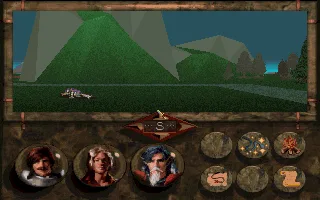
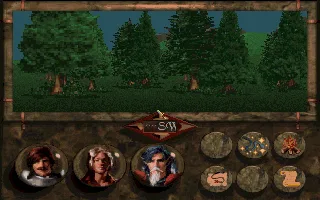
Betrayal at Krondor begins with an escort mission that turns into a dangerous journey. Gorath needs to reach Krondor, Locklear goes along with him, and young Owyn ends up caught in a story that is too big for him. The three faces stay in view beneath the landscape while the road opens up among trees and mountains. A conversation can matter as much as what you find a few steps ahead.
Dynamix created this role-playing game for DOS in 1993, with Sierra On-Line as publisher. The adventure takes place in Midkemia, the world of Raymond E. Feist's novels. The presentation divides the story into chapters and combines pages of prose, scenes with characters and movement through a three-dimensional environment. The first chapter is called Into a Dark Night and tasks the party with escorting Gorath to Krondor.
A party to get to know along the way
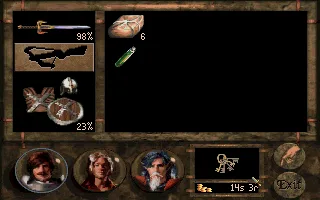
Locklear, Owyn and Gorath share the travel screen, but each one carries his own equipment. Opening Locklear's inventory shows the sword, the armor and the items he carries. The other portraits let you check on his companions. Before moving away from the starting point, it is worth recognizing where each item is and which character carries it.
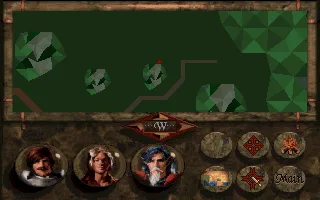
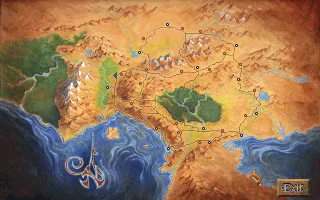
The landscape changes as you advance and the compass turns with the party. Trees, hillsides and paths serve as reference points when you look back. The overhead map helps you get your bearings among those features of the terrain. You can also open the full map of Midkemia and look up the names of its towns and regions before returning to the nearby route.
Read, explore and prepare the next step
The first scenes explain why these characters are traveling together. The space bar lets you advance through the texts, so you can read them at your own pace. After that, the arrow keys take the party through the travel view. Holding Up moves it forward and the side directions change its facing.
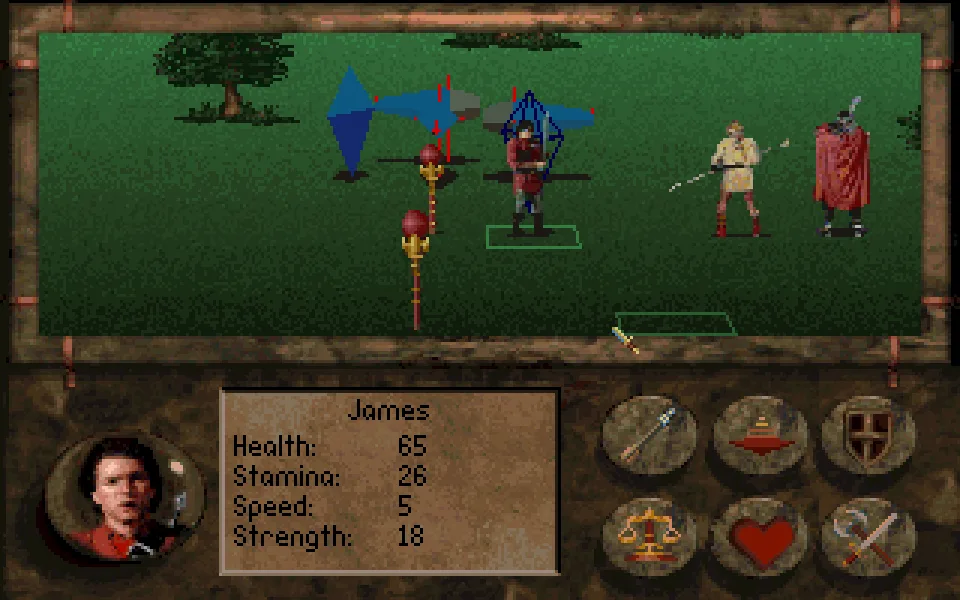
The game also uses the mouse to act on objects and to use the interface. The original documentation distinguishes the left button's action from the right button's examine function. The inventory, the maps, magic and rest each have their own screens. Combat is resolved in turns, with choices of movement, attack and spells that depend on the character and his situation.
It is a good idea to get familiar with those screens at the start. Open an inventory, return to the scene and check the map of the area. That small tour of the interface makes it easier to recognize the party's position and to find the controls when the adventure asks for a decision.
The copy you can play here
The online game uses a DOS copy with English text. Its notes file identifies itself as a no-cost release, version 1.02, and includes the game's documentation in Microsoft Write format. The prepared startup runs Krondor directly with the AdLib configuration that this copy keeps.
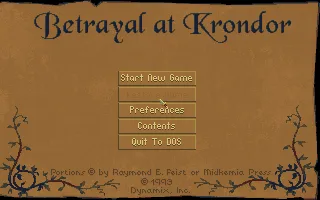
The gallery shows the title, the main menu, travel, the inventory and the maps, obtained by running the game in the browser. The background comes from the main menu. The downloads bring together the two DOS variants and keep their original ZIP files.
To start, press Space to get past the title and then N at the main menu. During the presentation, use Space to move on to the next text or scene. Once you are on the road, try a short move and open the inventory with 1. From there you can return with Esc and decide where you want to take the party.
EVERY PIXEL COUNTS
The game in pictures.
Explore the screenshots and open every detail at full size.
GET READY FOR YOUR NEXT GAME
Choose your download.
Format, compatibility and server. All in view.
Download Portable
COMPATIBILITYMS-DOS 6.22+ ✓ At no cost✓ No sign-up Download BoxSharer server · New tab BoxSharer02 OriginalDownload alternative version
COMPATIBILITYMS-DOS 6.22+ ✓ At no cost✓ No sign-up Download BoxSharer server · New tabClicking opens the CLABA loading area and, in a few seconds, your download. If a link fails, let us know via Contact or in the forum.
Your game starts here
Play in your browser.
Pick, press and go back to the classics without leaving the game page.
RetrogamingRight in your browserNo installation
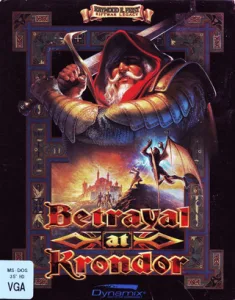
MS-DOSIn your browser
Betrayal at Krondor
Your next game starts here.
- 10 MB · downloads on click
- Save the game's files
- Keyboard, controller or touch
Controls
Click the game to use the keyboardOn mobile, play with the on-screen controllerSpace skips the title and text. N starts a game. Arrow keys move and turn. 1 opens the inventory. M opens the map. Esc exits. O opens the options.
- Full screen
Use the button on the bar. Esc returns to the game page; “Exit” closes the game.
- Saves
Save keeps the files the game creates, not the exact moment. Save inside the game, then press Save.
- Mobile and tablet
Press Controls during the game to show buttons and keyboard. Gamepad support depends on the browser.
Saves live in this browser and device. Clearing the site data deletes them too.
THE SECRET SIDE OF THE GAME
Tips, tricks and secrets.
A hint at the right time. A code that changes everything.
Start with the three inventories
Use 1, 2 and 3 to check what each companion carries. Before leaving the starting area, identify the weapons, the protection and the provisions. Return with Esc after each check. That way you will quickly recognize who an item belongs to when you start picking things up along the road.
Switch between the landscape and the nearby map
After walking or turning, press M to see the party's position from above. Check the orientation before continuing. The full map, available with F from that screen, lets you locate the regions. Esc returns to the nearby map and M brings back the travel view.
Take short steps while getting to know the terrain
At the start, hold Up for a moment and watch what has changed in the landscape. Then turn to one side and check the compass. These tests help you get used to the speed of movement and are easier to follow than a long trek without reference points.
Read one line of dialogue before moving on to the next
Space advances through the texts of the presentation and the opening conversations. Wait for the scene to be drawn before pressing it again. The names and circumstances of the escort appear in those exchanges and help you understand the goal of the first chapter.
No matches. Try another effect or code.
THE NEXT STEP, CLEARER
Guides to move forward.
From the first installation to that mission that won't give in.
Starting the first chapter
Open Play online and press Play now. Press Space to get past the title and reach the main menu. N starts a new game. The presentation shows Into a Dark Night, several pages of story and the conversation at the camp. Space lets you move from one line of dialogue to the next. When it ends, the travel view appears with the three portraits at the bottom. The first mission is to escort Gorath to Krondor.
Moving the party and checking its items
In the travel view, Up moves forward and Down moves back. Left and Right turn the party. Make a short move and look at the compass before repeating it. Press 1 to open Locklear's inventory. There you can see his equipment on the left and the carried items on the right. Esc closes that screen. Keys 2 and 3 correspond to the inventories of the other two characters.
Using the two maps
Press M from the travel screen to open the overhead map of the area. The figure that represents the party lets you relate the orientation to the mountains and trees along the route. F shows the full map of Midkemia. Esc closes that general view and returns to the nearby map. Press M to go back to the three-dimensional landscape. The names printed on the general map help you locate Krondor and the regions around it.
Returning to the game options
From the travel view, O opens the Options menu. Its buttons include Save Game, Preferences and Contents. Esc cancels the menu and lets you return to the route. Use that menu when you need to review the game's own settings. The pause in ClaBa Player is handy for stopping the emulation while you read these instructions. When you continue, focus the screen again before using the keys.
Something wrong?
Give us a hint.
A broken link, a detail to correct or a game that won't start. Your report helps keep this game page up to date.
Get in touchReport an issue with this game Discuss it in the forumCLABA ARCADE ROOM
This one and 250 more
play here.
When you finish your game, the room has other machines switched on.
Enter the roomTHE CLABA APP1.0 RC 1
Take the archive
with you.
Game pages, online play and your shelf on Android. Free, no sign-up.
ARCHIVE SECRETS
Did you know?
The credits separate several writing jobs. The included manual credits John Cutter with direction and design. Neal Hallford and Raymond E. Feist appear for the original story, while Hallford also appears for the text and the event design.
The structure of the book is part of the interface. The adventure is organized into nine chapters. The start of the first one presents an illustrated page and then the mission to escort Gorath, before handing over control of the travel view.
This copy keeps the notes from a later distribution. The README identifies itself as no-cost release 1.02 and includes instructions for reading the manual with Microsoft Write on Windows. The game that runs here is the DOS program.


