Westwood Studios · Strategy
BattleTech: The Crescent Hawks’ Revenge
BattleTech: The Crescent Hawks’ Revenge, a 1990 DOS strategy game from Westwood and Infocom. BattleMechs, tactical orders and an English campaign. Play online.
Strategy game by Westwood Studios (1990) for MS-DOS, in English. Playable in your browser or downloadable.
— no rating yet
THE CLABA ARCHIVE
Inside the game.
Its history, its ideas and the reasons to come back.
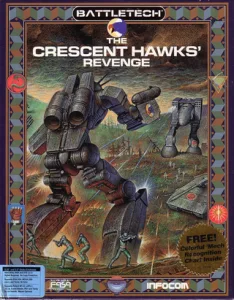
BattleTech: The Crescent Hawks’ Revenge is a strategy game from Westwood Associates, published by Infocom for DOS in 1990. The action takes place in the BattleTech universe, with pilots who command BattleMechs and receive orders during engagements. The copy is in English and lets you start a campaign from New Game.
Before combat begins, a map and scenes set up the situation. Selecting pilots and machines is also part of the opening. You must complete all four assignments before leaving that screen. The arrow keys move through the options and Enter confirms your choice. Wait for each change to appear on screen before continuing.
Giving orders to the Jenner
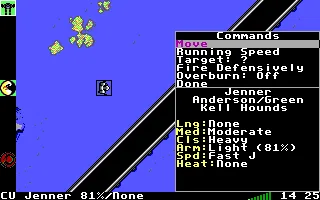
The first battle places Anderson’s Jenner near a dropship, a lake and a bridge. A Locust is approaching the area. The image of the terrain fills most of the screen, while messages and lookups let you follow what is happening with each unit.
F1 shifts attention to your own unit. Enter opens its orders box when it is selected. There you can check the pilot, experience, affiliation, weaponry, armor and heat. In the opening we checked, Anderson appears as Green and the Jenner retains 81% of its armor. The status changes during the engagement, so it is worth checking it after moving.
Movement and target
Move lets you choose a destination on the battlefield. The arrow keys move the cursor and Enter confirms the position. The menu that follows lets you review other orders before returning to the action. Esc closes that lookup. When the move is executed, the Jenner’s position and the surrounding terrain references change.
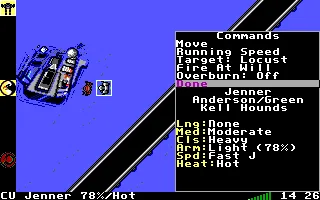
Target selects an opponent. In that mode, F9 lets you switch to the enemy and Enter confirms the target. The orders box shows Target Locust once the selection has been registered. That text lets you verify the order before continuing the combat.
The menu includes Fire Defensively and Fire At Will. It also shows Overburn and the heat status. These are decisions that affect how the unit behaves during the battle. In testing, we confirmed the switch to Fire At Will, turning off Overburn and assigning the Locust as the target. Heat and armor remain visible in the Jenner lookup.
Reading the combat alerts
Anderson’s messages point out the Locust’s presence, its arrival at the bridge and the attack on the dropship. When one of these alerts appears, read it and use Space to continue. A pending message can interrupt the next order you want to give. After closing it, F1 and Enter let you check the unit again.
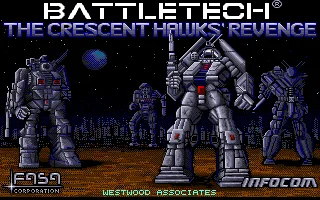
The online version starts in the KEYB mode that the game’s original configuration supports. The executables and the data are kept intact. The background of this game page comes from the title screen, and the gallery shows orders entered in the first mission. The download keeps the original copy, including its mouse configuration.
EVERY PIXEL COUNTS
The game in pictures.
Explore the screenshots and open every detail at full size.
GET READY FOR YOUR NEXT GAME
Choose your download.
Format, compatibility and server. All in view.
Clicking opens the CLABA loading area and, in a few seconds, your download. If a link fails, let us know via Contact or in the forum.
Your game starts here
Play in your browser.
Pick, press and go back to the classics without leaving the game page.
RetrogamingRight in your browserNo installation
MS-DOSIn your browser
BattleTech: The Crescent Hawks’ Revenge
Your next game starts here.
- 1 MB · downloads on click
- Save the game's files
- Keyboard, controller or touch
Controls
Click the game to use the keyboardOn mobile, play with the on-screen controller- Space
- menu/alerts
- Enter
- confirm
- ↑←↓→
- choose/destination
- Esc
- close/skip scenes
- F1
- own unit
- F9
- enemy when selecting a target
- Full screen
Use the button on the bar. Esc returns to the game page; “Exit” closes the game.
- Saves
Save keeps the files the game creates, not the exact moment. Save inside the game, then press Save.
- Mobile and tablet
Press Controls during the game to show buttons and keyboard. Gamepad support depends on the browser.
Saves live in this browser and device. Clearing the site data deletes them too.
THE SECRET SIDE OF THE GAME
Tips, tricks and secrets.
A hint at the right time. A code that changes everything.
Tip for completing the four assignments
Fill all four pilot slots before leaving the BattleMech selection. Use the arrow keys to change your choice and Enter to assign it. If a slot is left empty, finish that selection before going back to the story.
Tip for recognizing a target order
Open Target, switch to the enemy with F9 and confirm with Enter. Read the orders box again. Target Locust identifies the opponent selected in the first battle and lets you verify that your choice has been registered.
Tip for watching the heat
Check the Jenner’s status after executing the orders. The box distinguishes heat from armor and lets you review Overburn. In the first mission you can turn it off from that same menu and verify that Off appears.
Tip for handling messages
If an alert from Anderson fills the screen, press Space after reading it. Then focus on the unit again with F1 and open the orders with Enter. Check the menu that appears before entering another sequence of keys.
No matches. Try another effect or code.
THE NEXT STEP, CLEARER
Guides to move forward.
From the first installation to that mission that won't give in.
Starting a campaign in the browser
Open Play online and press Play now. Click inside the game to give it keyboard focus. From the introduction, Space opens the menu. Select New Game and confirm with Enter. Continue through the scenes with Enter, complete the four assignments of pilots and machines, and use Esc to leave the selection. Esc also lets you skip scenes until you reach the first battle.
Checking the Jenner and its pilot
In the first battle, press F1 to focus on your own unit and Enter to open the orders. Read the name Jenner and Anderson’s details. The lookup brings together experience, affiliation, armor, heat and the movement and combat instructions. Esc closes the box. If a message from the pilot appears, close it with Space before repeating the lookup.
Entering a move
In the orders box, choose Move with the arrow keys and Enter. Use the arrow keys to place the destination on the terrain. Enter confirms the position and returns you to the unit’s menu. Review the pending orders and close with Esc so the action continues. Watch the Jenner and the references of the lake, the dropship and the bridge to follow its movement.
Selecting the Locust as a target
Open the orders box and choose Target. F9 switches to the enemy when it is available. Enter confirms the choice. When you return to the box, check that Target Locust appears. From that menu you can select Fire At Will and check that Overburn is Off. Close the lookup with Esc and deal with the combat messages that follow.
Setting up the keyboard and using the player
The browser copy changes only INPUTDEVICE=MOUS to INPUTDEVICE=KEYB in media.cfg. Both modes appear in script.cfg. The original configuration is kept as MEDIABAK.CFG inside that compatible copy. The game’s executables keep their original bytes.
ClaBa Player lets you pause, mute, enlarge the screen, take a screenshot, restart and close. Restart returns to the initial introduction. To practice the orders, start with New Game and make sure you have reached the battlefield before opening the Jenner’s menu.
Original download and documentation
The download preserves the 150 files of the original copy. Keep revenge.exe and its data together. Its media.cfg keeps the original mouse mode. If you prefer the keyboard in a local installation, work on a copy and use the KEYB value supported by the configuration. The DOSBox from scratch tutorial (in Spanish) explains how to set up a games folder.
The program credits Westwood Associates and displays the 1990 Infocom copyright. Steve Englehart notes his involvement in this game’s manual on his BattleTech page. The original manual from the Powerhits compilation includes the instructions for Revenge. The movement orders, Locust selection and menu changes described here were verified on the DOS copy.
Something wrong?
Give us a hint.
A broken link, a detail to correct or a game that won't start. Your report helps keep this game page up to date.
Get in touchReport an issue with this game Discuss it in the forumCLABA ARCADE ROOM
This one and 250 more
play here.
When you finish your game, the room has other machines switched on.
Enter the roomTHE CLABA APP1.0 RC 1
Take the archive
with you.
Game pages, online play and your shelf on Android. Free, no sign-up.
ARCHIVE SECRETS
Did you know?
- The executable credits Westwood Associates and displays the 1990 Infocom copyright.
- The opening requires assigning four pilots and their machines before leaving the selection screen.
- The Jenner lookup shows heat, armor and combat orders separately.
- The original configuration supports the MOUS and KEYB modes for mouse and keyboard.