

Chris Sawyer · Sports
Goal! / Dino Dini's Goal
Dino Dini's top-down soccer with a configurable camera and competitions. Start with Partido único (Single match), set up your team and hold the action key.
Sports game by Chris Sawyer and Dino Dini (1993) for MS-DOS, in Spanish and other languages. Playable in your browser or downloadable.
— no rating yet
THE CLABA ARCHIVE
Inside the game.
Its history, its ideas and the reasons to come back.
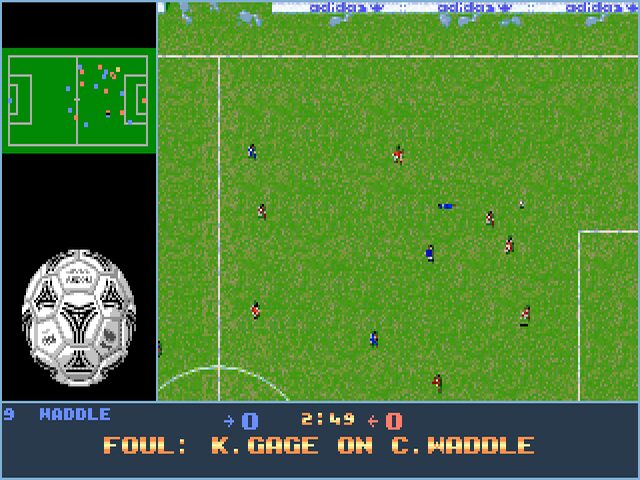
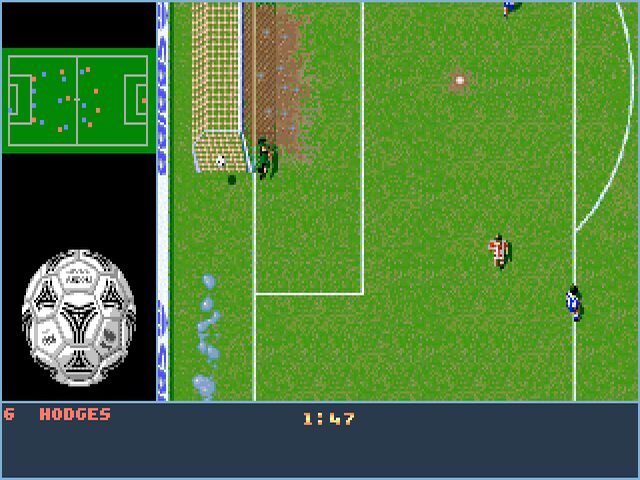
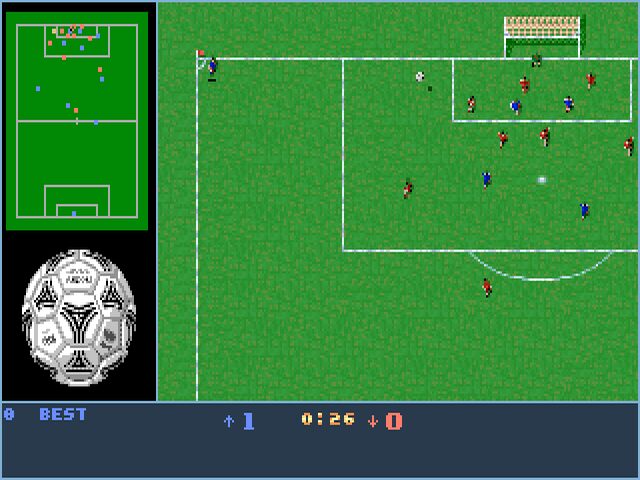
Goal! offers fast soccer seen from above: eleven players, a ball that demands attention and matches in which getting your bearings and arriving in time matters as much as finding the shot. Dino Dini designed and programmed the original; Chris Sawyer made the IBM PC conversion. Virgin Games published the game.
A match your way
The menu (in Spanish in this copy) distinguishes Práctica (Practice), Partido único (Single match), Liga (League), Copa (Cup) and Reto arcade (Arcade challenge). You can start with a Partido único without committing to a competition, review the squad and set up an opponent controlled by the computer. The example tested pits two Aberdeen sides against each other: Jugador 1 (Player 1) against Ordenador (Computer), with different uniforms to tell them apart.
The options let you change duration, wind, field type and CPU difficulty. You can also choose a vertical or horizontal view, image scale and the behavior of the small radar. There is no need to alter everything at once: start with the normal field and get used to the camera.
From the menu to the kick-off
The mouse is used for the menus and the setup. The pointer is a big ball: try to place it well inside the button, because its upper left corner may fall outside even if it visually touches it. After choosing Jugar (Play) and continuing through the squad (Continuar), hold the action key until the controller selection is complete.
This DOS copy supports Q/A/K/L for direction and the semicolon key for action in the keyboard profile tested. The player includes virtual buttons with the same codes, so you do not depend on your keyboard layout having the symbols in the same position. The screen may keep showing JOYSTICK 1: in the test it was controlled with the keyboard, with no joystick connected.
A real match against the CPU, movement along both diagonals and the response of the action were checked, with the clock, selection and camera advancing. Scoring a goal, winning the match or completing a cup is not confirmed. The original remains intact and the online version uses its CDGO.BAT launcher inside DOS.
EVERY PIXEL COUNTS
The game in pictures.
Explore the screenshots and open every detail at full size.
GET READY FOR YOUR NEXT GAME
Choose your download.
Format, compatibility and server. All in view.
Download Repack
COMPATIBILITYWindows XP / 7 / 10 ✓ At no cost✓ No sign-up Download www.mediafire.com · New tab MediaFire02 OriginalDownload Original
COMPATIBILITYMS-DOS 6.22+ ✓ At no cost✓ No sign-up Download www.mediafire.com · New tabClicking opens the CLABA loading area and, in a few seconds, your download. If a link fails, let us know via Contact or in the forum.
Your game starts here
Play in your browser.
Pick, press and go back to the classics without leaving the game page.
RetrogamingRight in your browserNo installation
MS-DOSIn your browser
Goal! / Dino Dini's Goal
Your next game starts here.
- 995 KB · downloads on click
- Save the game's files
- Keyboard, controller or touch
Controls
Click the game to use the keyboardOn mobile, play with the on-screen controller- QAKL
- direction
Mouse: menus. Action: semicolon or the Action button in Controls. Hold action to start. Player 1 against Computer.
- Full screen
Use the button on the bar. Esc returns to the game page; “Exit” closes the game.
- Saves
Save keeps the files the game creates, not the exact moment. Save inside the game, then press Save.
- Mobile and tablet
Press Controls during the game to show buttons and keyboard. Gamepad support depends on the browser.
Saves live in this browser and device. Clearing the site data deletes them too.
THE SECRET SIDE OF THE GAME
Tips, tricks and secrets.
A hint at the right time. A code that changes everything.
Tip: start with Partido único (Single match)
Keep Jugador 1 (Player 1) on the first team and Ordenador (Computer) on the second. Practicing first avoids learning the controls and running a competition at the same time.
Tip: hold the action key at the start
At «Press fire to start» (Pulsa disparo para empezar), hold the Action key or virtual button for several seconds. A short press may not complete the controller selection line.
Tip: put the ball inside the button
The menu cursor is big. Aim it at the lower half of Play or Continue, keeping its upper left corner inside the active area.
Tip: change one option at a time
Start with no wind and a normal field. Then try another duration or camera; that way you can tell what changes without mixing up all the settings.
Tip: tell the teams apart
If both clubs are the same, check the uniform shown in the pre-match. Also watch the name and shirt number at the bottom; the camera follows the play and does not always keep the player at the same point on the screen.
No matches. Try another effect or code.
THE NEXT STEP, CLEARER
Guides to move forward.
From the first installation to that mission that won't give in.
Starting up and choosing Spanish
Press Play online and Play now. The original launcher prepares the DOS environment and shows its sound selection; 4 allowed the test to continue. After the introduction use Space when appropriate and choose Spanish with the mouse to put the menus in Spanish. You do not need to install anything or run the BAT on your computer.
Wait for the sound selection to appear before pressing 4. On desktop the first click on the game captures the mouse; Esc releases the pointer. You can also open Controls and use the virtual mouse for the menus.
Setting up Aberdeen against the CPU
Choose Partido único (Single match). Keep Jugador 1 (Player 1) on the first team and Ordenador (Computer) on the second; in the test both are Aberdeen and keep Semi-Pro. Press Jugar (Play) and review the squad preview. Press Continuar (Continue) with the pointer well inside the button.
At «Press fire to start», hold the action key for a few seconds. The JOYSTICK 1 label did not prevent playing with the keyboard profile that was checked.
Keyboard and action on the field
The profile tested uses Q/A/K/L for direction and the semicolon for action. The A+L and Q+K combinations and the action inside the match were tested, not just in the menus. If your keyboard layout responds differently to the symbol, open Controls and use the Q, A, K, L and Action buttons.
The action can start the kick-off and act in the play depending on the situation. No goal or accurate shot is promised just for pressing it; watch the ball, the selection at the bottom and the radar.
Options before competing
Opciones (Options) lets you change the field, wind, duration, goalkeeper level and CPU. View and Scale adjust how you see the match; Scanner modifies the radar. The team editor is a separate section. The features are present in the copy, but the test does not confirm a saved league, cup or custom team.
Manual, edition and saving
The original Virgin manual explains the setup and the competitions. Its IBM PC section refers to a specific keyboard guide: the online instructions on this page come from testing this DOS copy, not from carrying over an Amiga joystick.
The player’s Save keeps modified DOS files. Also use the native save options where appropriate; recovering a season or a replay created by the user has not been certified. No physical gamepad or Internet multiplayer support is promised. The v4 bundle keeps the 134 original entries and the DOS configuration from v1. It only changes the outer mouse profile to relative; it does not use the experimental v2/v3 profiles or another backend.
Something wrong?
Give us a hint.
A broken link, a detail to correct or a game that won't start. Your report helps keep this game page up to date.
Get in touchReport an issue with this game Discuss it in the forumCLABA ARCADE ROOM
This one and 250 more
play here.
When you finish your game, the room has other machines switched on.
Enter the roomTHE CLABA APP1.0 RC 1
Take the archive
with you.
Game pages, online play and your shelf on Android. Free, no sign-up.
ARCHIVE SECRETS
Did you know?
- The small radar can be set to automatic, fixed or turned off.
- The view lets you switch between vertical and horizontal, with several scales.
- The options separate the goalkeeper’s level from the computer’s skill.
- The editor offers player statistics and uniform design, as well as team selection.


